
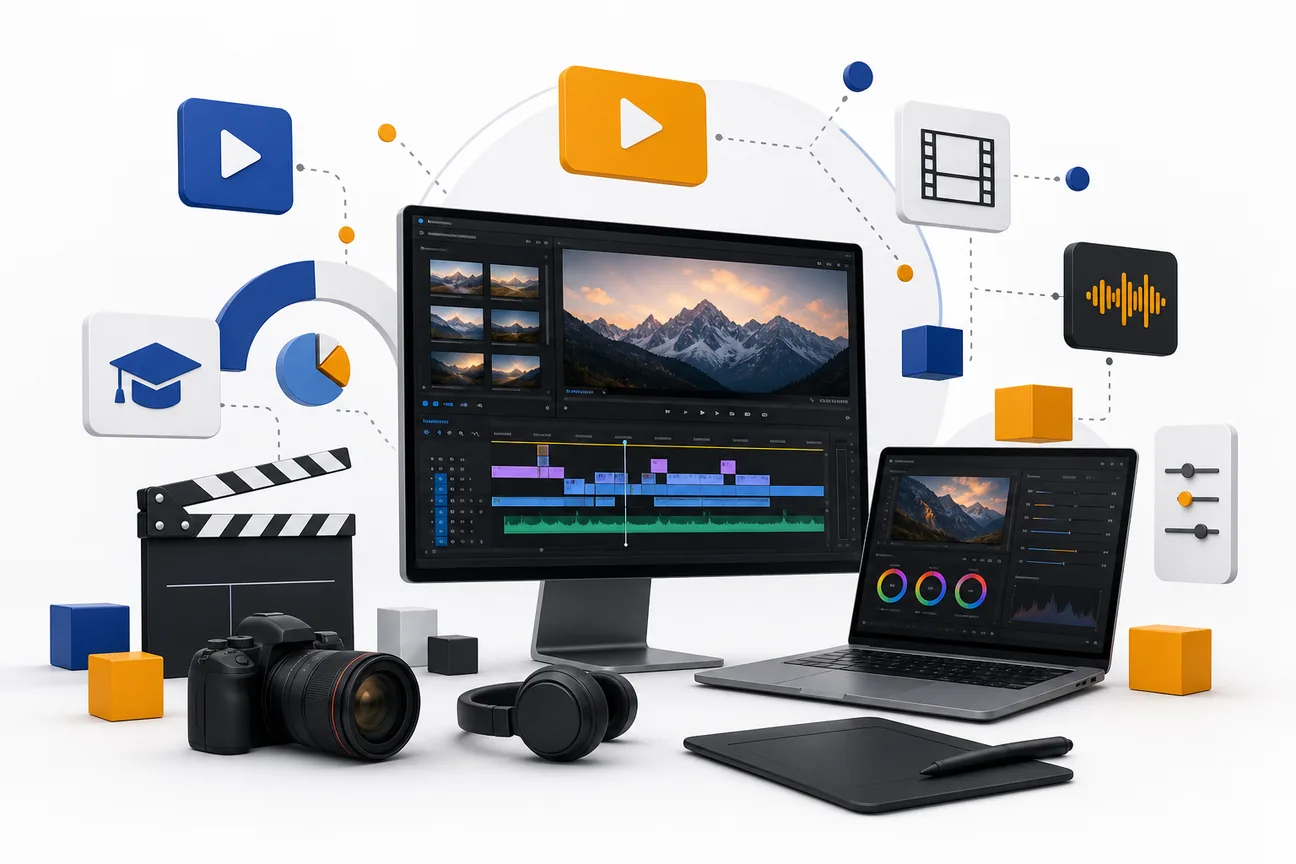
Looking for a video editing course that actually helps you launch or level up a YouTube channel? Below are five solid picks, each with a clear focus. Pick the one that matches your software, budget, and learning style, then start editing.
We analyzed 40 comments and questions from YouTube, Reddit and Quora about Video editing courses for YouTube and found that 30% mentioned the basics of video editing.
1. DaVinci Resolve 17 Course for Beginners by Skillademia: a structured starting point
Skillademia’s DaVinci Resolve 17 Course is a beginner‑friendly, 11‑hour program that walks you through every essential step in Resolve. The curriculum is broken into 11 modules, each packed with short video lessons and hands‑on exercises. By the end you’ll be able to cut, colour‑grade, add visual effects, and export videos ready for YouTube.
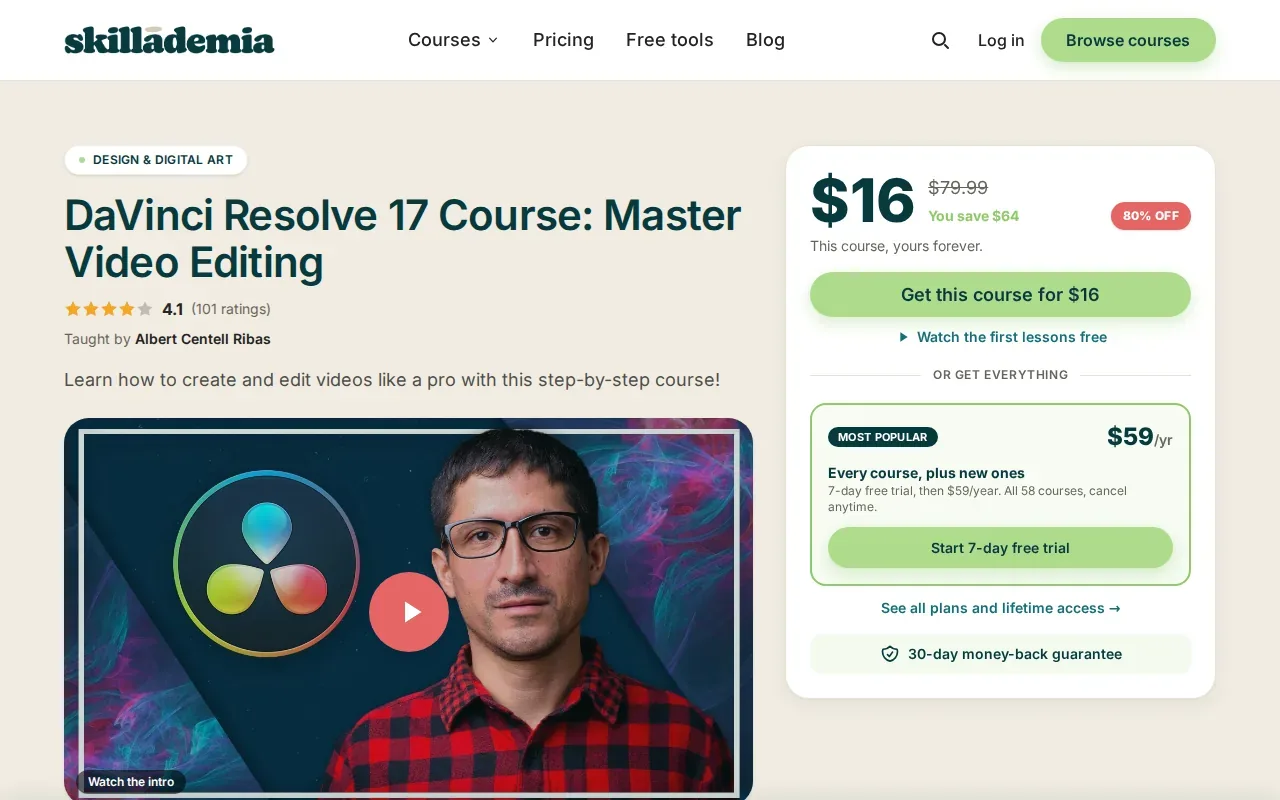
The course leans on DaVinci Resolve’s free desktop version, which many creators choose because it offers professional‑grade colour tools without a subscription fee. Resolve is used by both indie filmmakers and major studios, so learning its workflow gives you a solid foundation no matter how you scale.
What makes this option stand out is the emphasis on hands-on, project‑based learning. Each module includes a downloadable project file that mirrors a typical YouTube video, a vlog intro, a talking‑head segment, and a simple motion‑graphics lower third. You import the file, follow the instructor’s notes, and end up with a finished clip you can publish straight away.
An honest limitation: the course focuses on Resolve 17, so newer UI tweaks introduced in later versions aren’t covered. If you plan to upgrade soon, you’ll need to explore the release notes on your own.
2. Upskillist Video Editing Course: professional‑grade software for beginners
Upskillist’s Video Editing Course targets absolute beginners but quickly moves them into Adobe Premiere Pro and After Effects. The program is delivered online, so you can start right after you sign up, and it includes a certificate that you can display on LinkedIn.
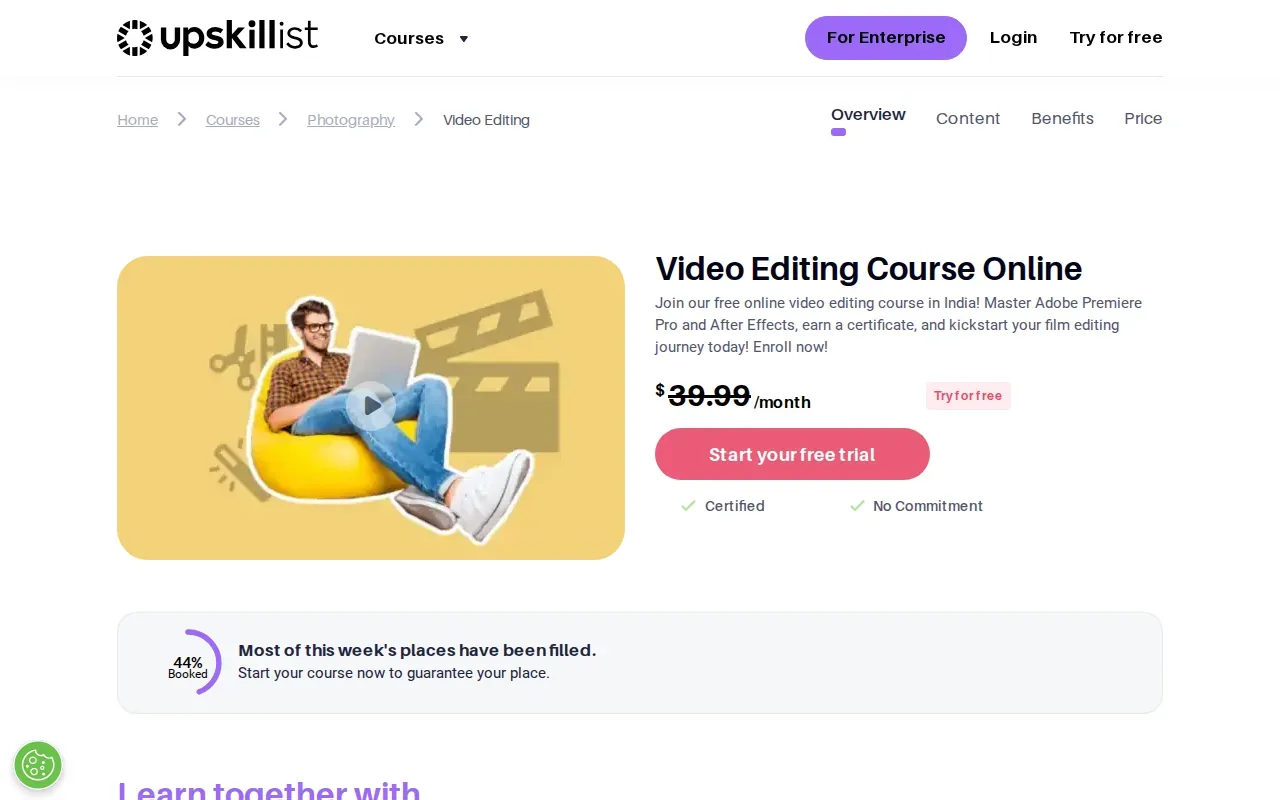
The curriculum is split into two parts. First, you learn Premiere Pro basics, importing media, cutting on the timeline, and applying simple transitions. Second, you dip into After Effects for basic motion graphics, such as animated lower thirds and simple title sequences. This dual‑software approach mirrors many professional workflows where Premiere handles the edit and After Effects adds visual flair.Upskillist’s teaching style relies on short, focused videos followed by quick quizzes. The quizzes reinforce concepts like keyframe animation and colour correction, ensuring you retain the steps when you work on your own YouTube videos. The platform also offers a community forum where students share project files and give feedback.
One caveat: the course does not include a deep look at advanced colour grading or audio mixing. If you need those skills, you’ll have to supplement the training with other resources.
For readers who want to see how this course compares to other editing tools, check out Best Video Editing Software For YouTube: 7 Top Picks on DiSousa.
3. Adobe Premiere Pro official tutorial library: ongoing learning for Premiere users
Adobe’s own tutorial library is a free, continuously updated hub of video‑editing lessons. The “Beginner” series starts with a 45‑minute walkthrough that shows you how to import footage, trim clips, add transitions, and export for YouTube.
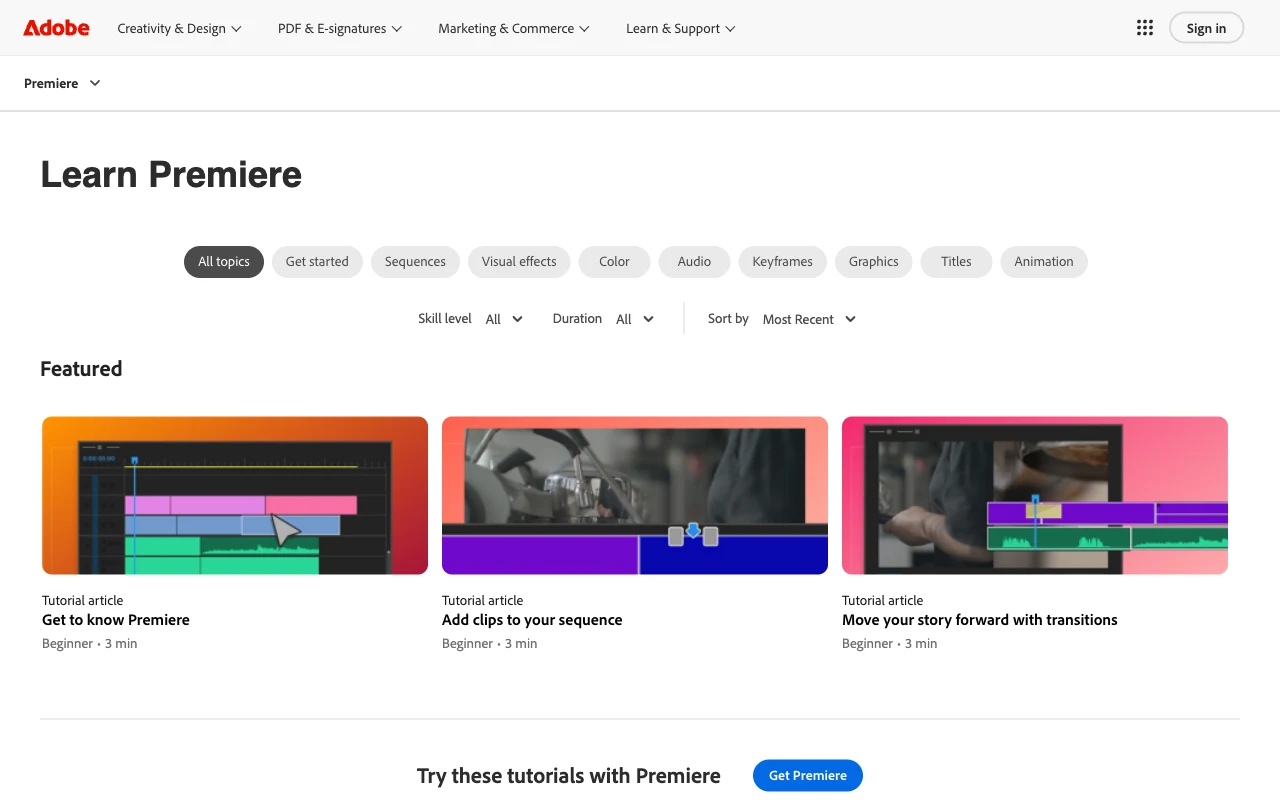
Because it’s hosted by Adobe, the tutorials always reflect the latest interface changes. The library also covers shortcuts and other editing topics that can help give your YouTube videos a polished look.
The biggest advantage is flexibility: you can dip in for a single topic or follow the entire playlist for a more structured learning path. The videos include downloadable assets, so you can practice on the same clips the instructor uses.
A limitation: the tutorials are bite‑size and don’t provide a full project‑based curriculum. If you prefer a course that walks you through a complete video from start to finish, you’ll need to combine these tutorials with a more complete program.
4. YouTube Creator Academy: free, self‑paced learning for platform creators
YouTube’s own Creator Academy offers a free, self‑paced course that zeroes in on editing techniques specific to the platform. The curriculum covers platform-focused editing topics.
What sets this option apart is the direct connection to YouTube’s best‑practice guidelines. The lessons reference the most recent algorithm updates and recommend export settings that keep video quality high while staying under the platform’s file‑size limits.
The course also includes quizzes that test your knowledge of thumbnail design, audience retention tricks, and metadata optimization, all of which affect how the algorithm surfaces your content.
An honest limitation: the editing portion focuses on the platform, so you’ll need another resource for desktop-editor skills.
For a quick overview of how the Creator Academy fits into a broader learning plan, see YouTube Creator Course: A Step‑By‑Step Plan on DiSousa.
5. YouTube Success Script, Shoot & Edit with MKBHD by Skillshare
Skillshare’s one‑hour crash course is led by tech reviewer Marques Brownlee (MKBHD). It’s designed for creators who want a fast overview of scripting, shooting, and basic editing.
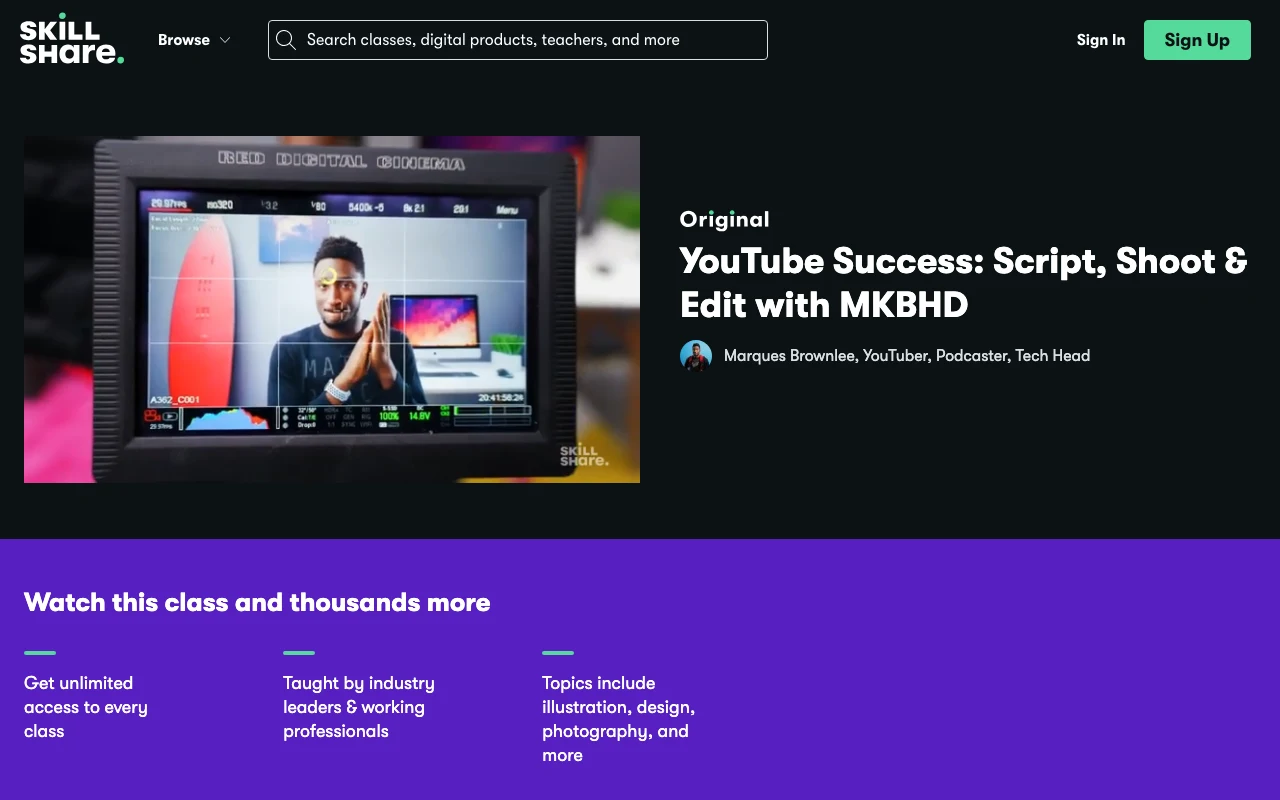
The class walks you through a simple workflow: start with a concise script, set up a simple lighting kit, capture footage on a DSLR, then edit the clip using basic cuts and colour tweaks. Brownlee demonstrates each step on his own camera, so you see exactly how a pro handles the edit.
Because the course is only an hour long, it’s perfect for creators who already know the basics of an editing program but need a quick refresher on efficient production. The focus on storytelling and pacing gives you a solid framework for keeping viewers engaged.
A limitation: the editing portion stays at a high level and doesn’t dive deep into advanced effects or colour grading. If you want to master those, you’ll need a longer, more detailed program.
After you finish the crash course, you might want to outsource repetitive editing tasks to a third-party service.
For more step‑by‑step guidance on growing a channel, DiSousa’s YouTube Training: A Beginner Step‑By‑Step Guide walks you through channel setup, content planning, and analytics.
FAQ: video editing courses for YouTube
What level of skill do these courses assume?
All five options start at a beginner level. The DaVinci Resolve and Upskillist courses assume no prior editing experience, while the Adobe tutorial library and Creator Academy expect basic computer literacy. MKBHD’s Skillshare crash course is best for those who already know how to handle a timeline.
Do any of these courses offer certification?
Upskillist provides a certificate you can add to LinkedIn, and Skillshare shows completion badges, but the Adobe library and Creator Academy do not issue formal certificates.
Are any of the courses free?
Both the Adobe tutorial library and YouTube Creator Academy are completely free. Skillshare offers a free trial that gives you access to the MKBHD class. Check Skillademia’s site for the current price of the DaVinci Resolve course.
Which course covers colour grading the best?
The DaVinci Resolve 17 Course dives deep into colour correction using Resolve’s colour‑grading panel, making it the strongest option for learners who want that skill set.
Can I use these courses if I edit on a Mac?
Yes. DaVinci Resolve, Adobe Premiere Pro, and the YouTube Creator Academy all run on macOS. Upskillist’s lessons cover Adobe tools, which also run on macOS.
How long does each course take to complete?
DaVinci Resolve’s course runs 11 hours, Upskillist’s length depends on the plan you choose, the Adobe tutorials total about 45 minutes for the beginner set, Creator Academy modules vary but can be finished in a few hours, and the MKBHD crash course is a single hour.
Choosing the right video editing course depends on the software you prefer, how much time you can invest, and whether you need a certificate. If you want a free, ongoing resource that stays up‑to‑date, start with Adobe’s official tutorial library. If you prefer a structured, hands‑on program that uses a free desktop editor, the DaVinci Resolve 17 Course by Skillademia is the most complete pick.
