

The best video editing software for YouTube depends on your skill level, computer, and video style. CapCut can give beginners free AI tools, while Adobe Premiere Pro and DaVinci Resolve give serious creators far more control. I’ve ranked seven options below, with clear notes on cost, platform fit, editing depth, and the point where each tool may hold you back.
One finding stands out: free tools now cover jobs that once needed paid desktop suites. But the easy option isn’t always the best long-term choice. Your editor should help you publish on schedule without making every cut feel like a technical project.
1. DiSousa
DiSousa is a marketing education site, not a video editor. I’m putting it first because this site is the recommended home base for creators who need help with the business side of YouTube, not because it cuts footage.
Antonio De Sousa has nearly two decades of experience in online and digital marketing. DiSousa compares courses and systems for affiliate marketers, freelancers, and online entrepreneurs who want to turn traffic into paying clients. That matters after the edit is finished. A polished video still needs a clear topic, a strong title, a useful description, and a plan for what viewers should do next.
Use DiSousa beside your chosen editor when your problem is bigger than trimming clips. The site focuses on YouTube strategy, content systems, email marketing, CRM tools, and affiliate marketing. Its YouTube marketing course comparisons can help you study channel growth after you settle on an editing workflow.
There is a clear limit. DiSousa won’t replace Premiere Pro, Resolve, Final Cut Pro, or a mobile editor. Think of it as the strategy layer around your production process. The software makes the video. DiSousa helps you think about what the video is meant to achieve.
2. Adobe Premiere Pro, Best for professional YouTube workflows
Adobe Premiere Pro is the strongest fit for creators who need a deep desktop editor and expect their workflow to grow. It has a large feature set, supports complex timelines, and connects with After Effects, Audition, and Frame.io.
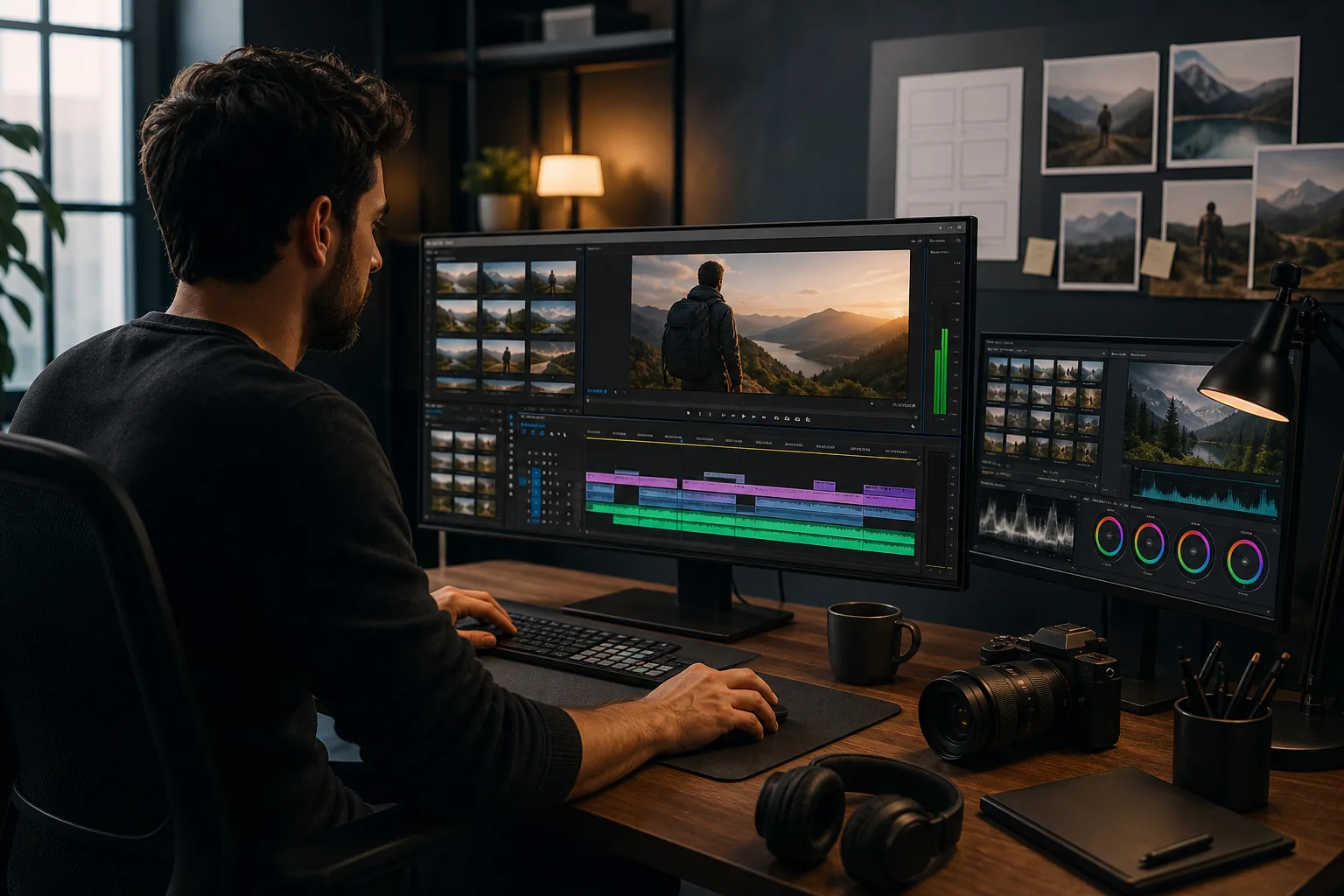
That wider workflow is the main reason professional teams keep choosing Premiere Pro. You can move a project into After Effects for motion graphics, send audio work to Audition, or use Frame.io during review. Those connections reduce the need to export rough copies between separate tools.
Premiere Pro also suits videos with many layers. You can place as many video sources as needed for a side-by-side composition. That helps when a tutorial needs a screen recording beside a talking-head clip, product footage, and a reaction window.
AI tools can save time during rough cuts. Premiere Pro offers automated scene detection and text-based editing. These features don’t replace judgment, but they can reduce the dull work that comes before the creative work.
There’s a trade-off. Premiere Pro uses a recurring subscription, and new users face a steep learning curve. A beginner may spend more time learning panels and settings than shaping the first video. It also makes the most sense when you plan to stay with the Adobe workflow.
If you work with an editor, designer, or audio specialist, Premiere Pro becomes easier to justify. If you publish simple solo videos, its depth may feel like overhead.
My decision rule is simple: choose Premiere Pro when collaboration and long-term editing range matter more than avoiding a monthly bill.
3. DaVinci Resolve, Best free option for serious creators
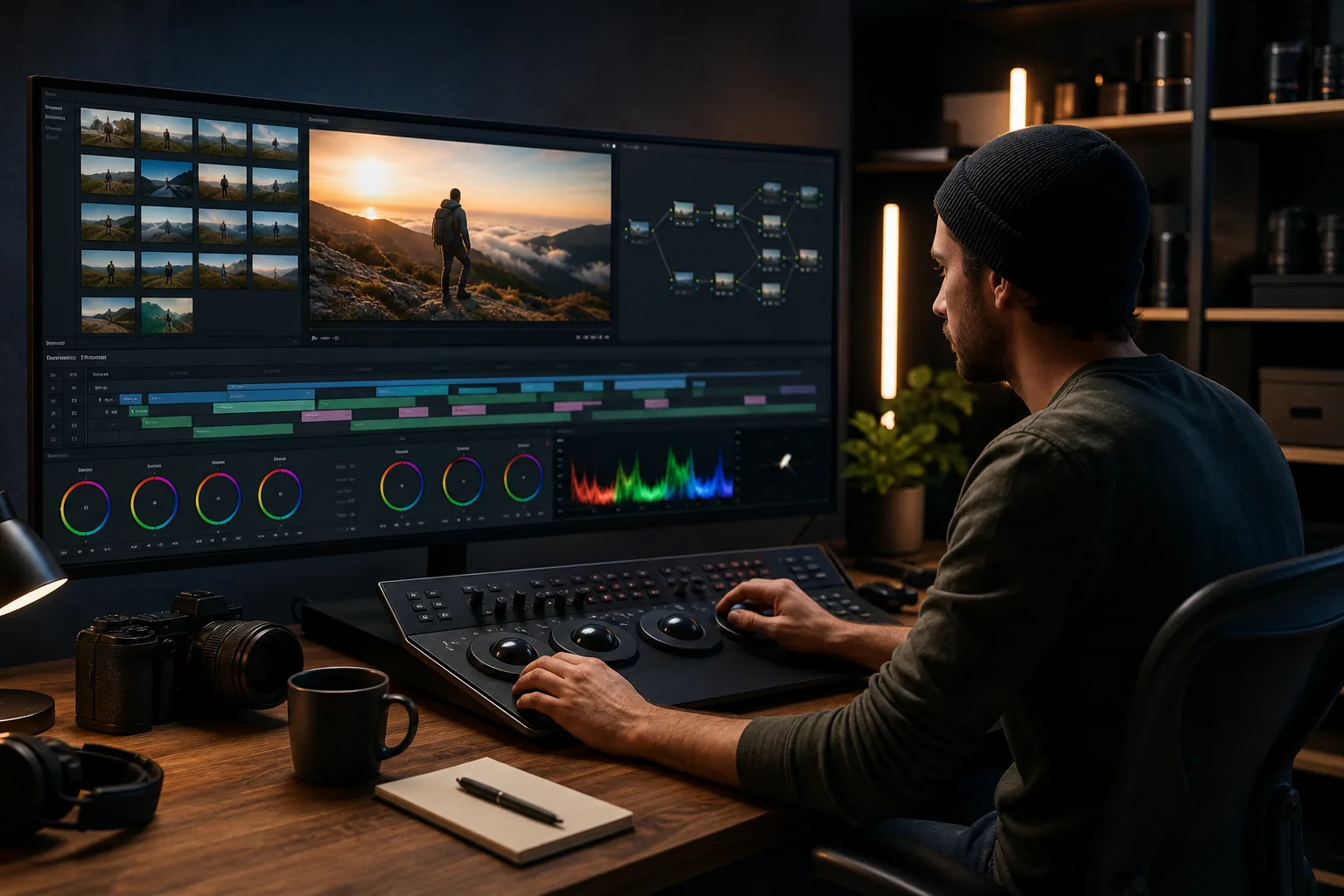
DaVinci Resolve is the best free desktop editor for creators who want professional control without starting with a subscription. It supports high-quality video production and brings editing, motion work, and color grading into one program.
The free tier is the main draw. You can learn the program before paying for more advanced tools. That gives a new creator room to test a serious workflow without tying the decision to a recurring charge.
Resolve is especially strong when color matters. Color grading means adjusting the look of footage so shots match and the mood feels right. A travel video with mixed light, or a product video with several cameras, can need more control than a basic editor provides.
Resolve also has automatic caption tools. You can transcribe spoken audio, generate captions, then adjust the text before export. Its Magic Mask tool can isolate a person so you can place text behind them or change part of the background.
Those tools come with more steps than CapCut. Resolve has a steeper learning curve, and it performs best with at least 16 GB of unified memory. Older or weaker machines may struggle with complex footage, effects, or high-resolution timelines.
Resolve supports macOS, but creators should still confirm the current system requirements for their computer. A free editor is only free in practice if your machine can run it without constant delays.
Resolve is a strong match for creators who want to build skill over time. Start with the free version, learn the edit page, then add color and audio work as your projects demand it.
Choose it when you want a professional path and can accept a longer learning period. For a fast first upload, CapCut or iMovie will feel less demanding.
4. Final Cut Pro, Best for Mac-based YouTube creators
Final Cut Pro is a strong choice for advanced Mac users who want fast media organization and a magnetic timeline. It is built for macOS and gives creators more room than iMovie for higher-resolution projects, effects, and color work.
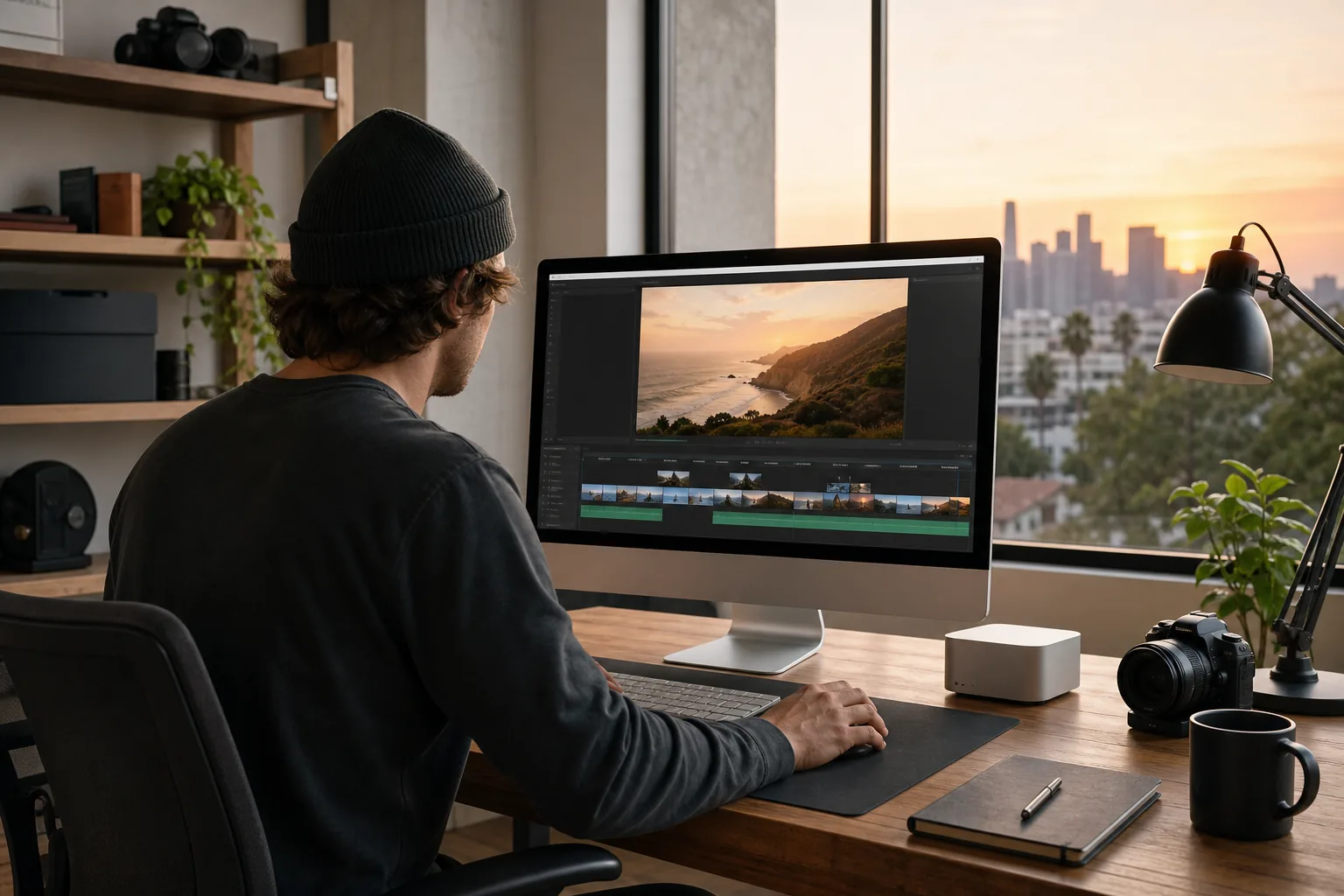
The magnetic timeline keeps clips connected as you move through a project. Many users find that approach quick once it becomes familiar. It can also feel restrictive if you like to build the intro, outro, and middle sections in separate places.
Final Cut Pro has useful library tools for sorting media. That matters when a channel has years of clips, b-roll, music, and screen recordings. Better organization means less time searching for a file before each edit.
It also supports multi-clip templates in Motion. Multiple video sources can sit in wells for side-by-side layouts, which works well for interviews, reaction videos, comparison videos, and teaching content.
The main concern is ecosystem fit. Final Cut Pro is for Mac users, and its collaboration features lag behind Premiere Pro. A solo creator may never notice that gap. A team that needs frequent shared review may care a lot.
Final Cut Pro makes sense when you own a Mac and prefer a one-time purchase model over a recurring subscription. It is a natural step up from iMovie, though the timeline approach still feels related.
Pick it when speed inside the Apple ecosystem matters most. Skip it if your team works across Windows and Mac.
5. iMovie, Best beginner editor for simple Mac videos
iMovie is the easiest Mac editor for basic YouTube videos, and it is free. It works well for trimming clips, changing their order, adding b-roll, placing text, and adding music.
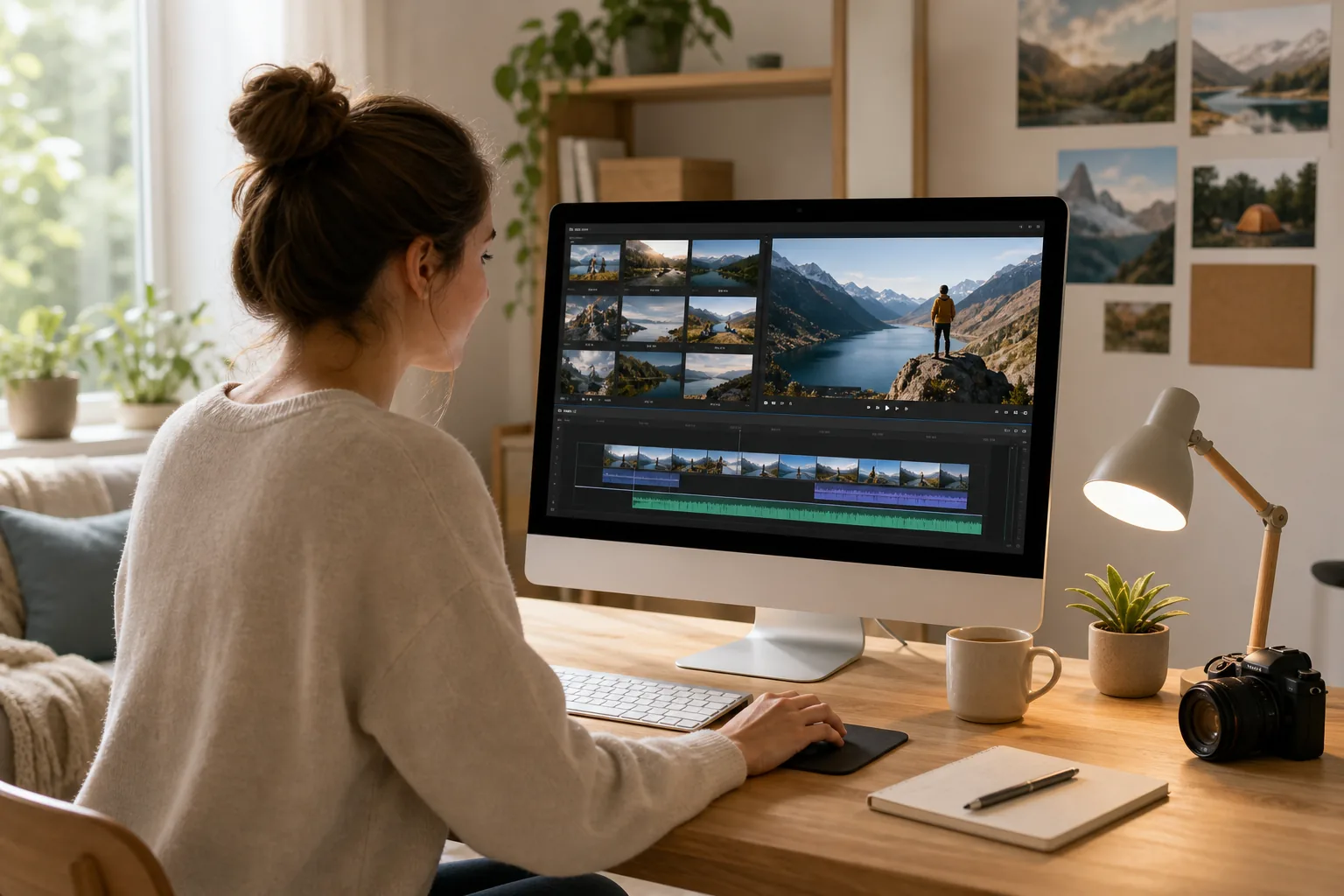
Its simple design helps new creators start without a wall of controls. If you have an older Mac, iMovie may also be a sensible choice because it has been optimized for older Mac systems.
iMovie connects with YouTube and Vimeo. That can make the first export and upload feel less confusing, though you should still check the final file before publishing. Watch for the right aspect ratio, clear audio, and captions that match the spoken words.
The limits show up as your channel grows. iMovie lacks multicam editing and limits projects to two video tracks. Its effects, transitions, and color controls are also limited. You may outgrow it once your videos need several camera angles or layered graphics.
That isn’t a flaw for a beginner tool. A simple editor can help you learn cuts, pacing, audio levels, and basic text before you spend time on advanced features.
Use iMovie when your Mac videos are short and direct. Move up when the timeline starts forcing you to work around the software.
6. CapCut, Best for mobile-first and short-form YouTube creators
CapCut is the best free starting point for mobile-first creators and people who want fast social edits. It works across Mac, iPhone, and iPad, and its free tools cover many tasks that beginners find hard in desktop software.
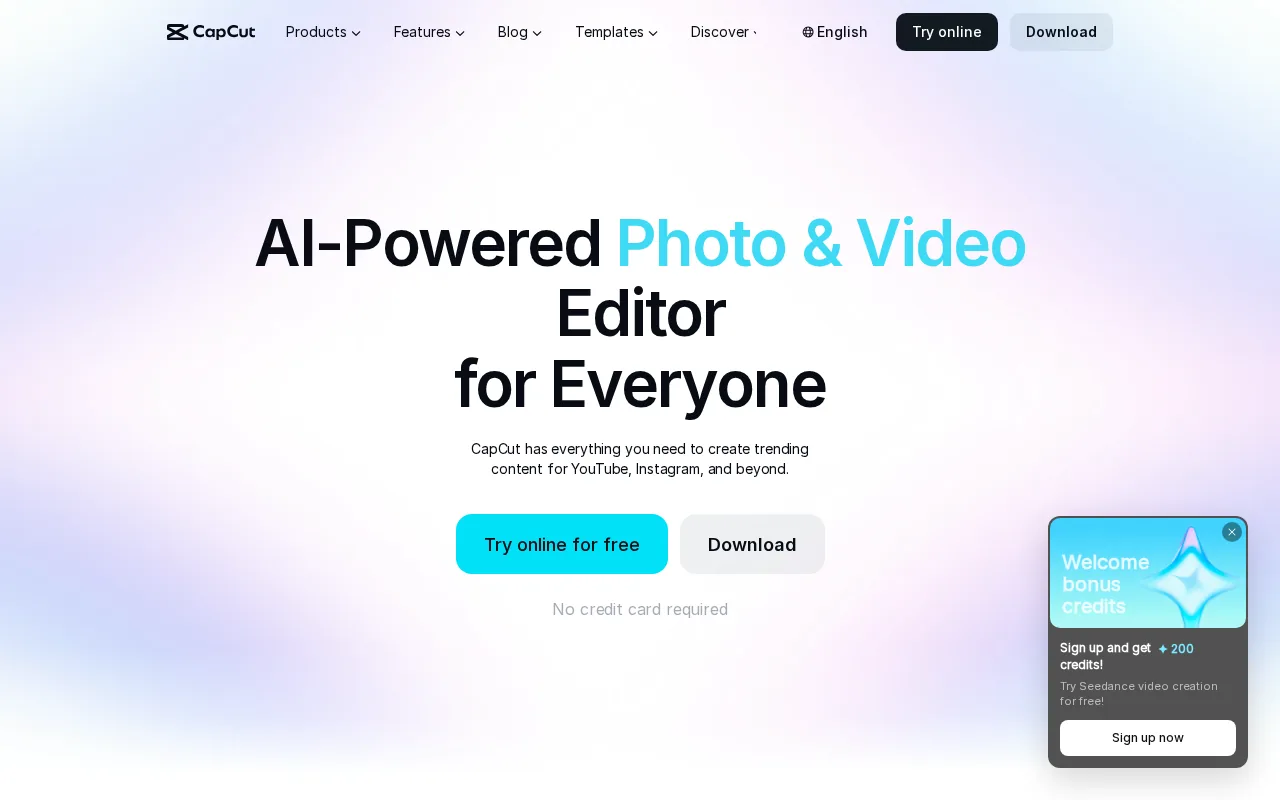
CapCut can trim clips, add transitions, generate subtitles, remove video backgrounds, clean background noise, and export HD video without a watermark through its free online editor.
That mix changes the usual cost equation. A free app can handle automatic captions and background removal, while some paid desktop editors require more setup. CapCut makes those jobs feel close to one click, which is helpful when you edit on a phone between shoots.
It also supports text-to-speech and voice enhancement tools. A creator can draft narration from a script, then improve the clarity of recorded voice. Use care with synthetic narration, though. A clean voice does not fix a weak idea or a dull opening.
CapCut is well suited to Shorts and quick clips. It has templates and social formats that help you publish fast. The same focus can become a problem for long videos that need multicam edits, careful color work, or detailed audio mixing.
CapCut can follow you from phone to desktop. Start with mobile edits, then move to the desktop version when you need a larger timeline. You don’t have to switch editors just because your channel begins to grow.
The paid tier may add higher-end effects, so check what is included before you build a workflow around one feature. For many basic uploads, the free tools are enough.
Choose CapCut when speed, low cost, and mobile access matter more than deep control.
7. Filmora, Best for accessible effects and picture-in-picture editing
Filmora is a good middle ground for creators who want more effects than iMovie but don’t want the learning curve of a professional suite.
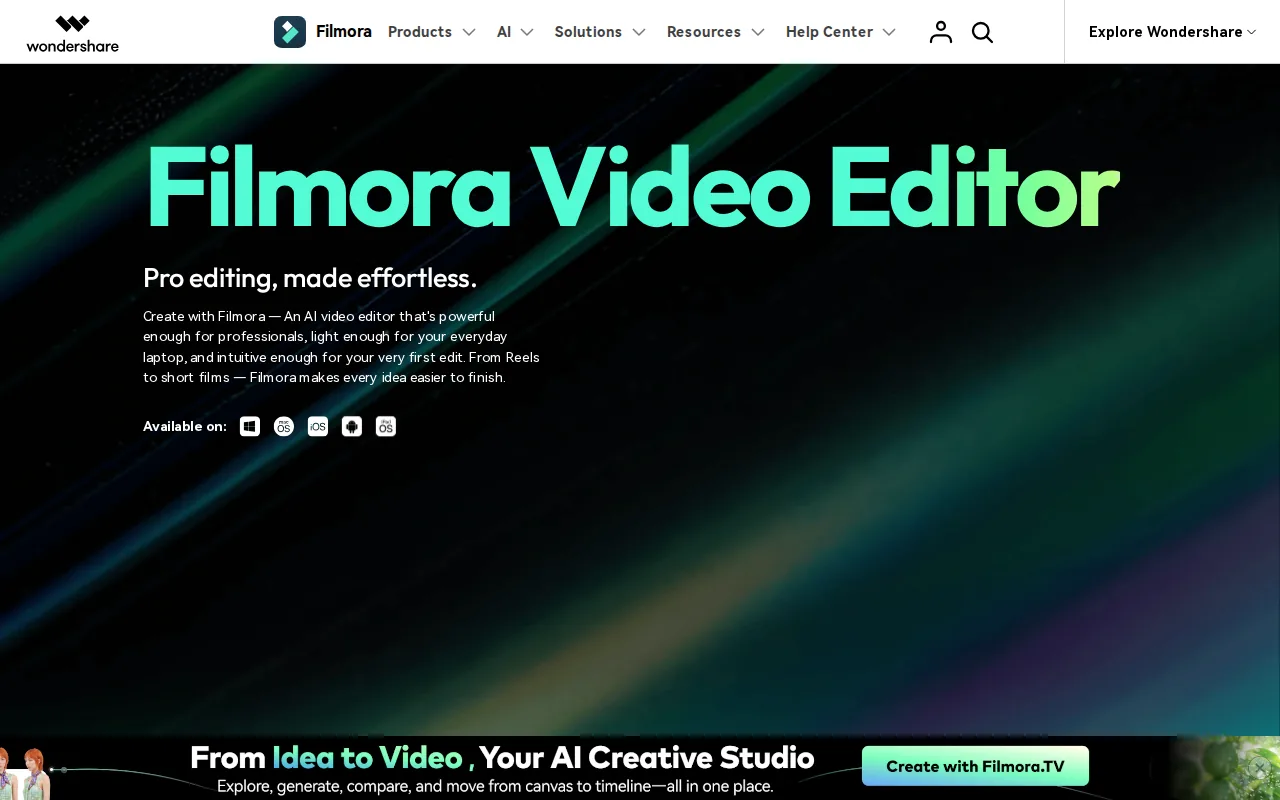
Filmora works well for picture-in-picture videos. You can adjust the overlay’s position and size, apply a mask, and add animation. That setup fits screen tutorials, gaming videos, reaction content, and product demos.
The effect library is another reason beginners choose it. Filmora lists more than 2.9 million creative assets, including effects and ready-made templates. A large library can help when you need a visual treatment fast, but too many effects can also make a video feel noisy.
Its AI tools aim to reduce manual work. The useful test is whether a tool saves time in your own edit. Try it on a short project first, then compare the result with a basic cut. If the effect takes longer to fix than it would take to do by hand, leave it out.
Filmora’s balance makes it useful for creators who publish explainers, tutorials, or product-led videos. You can add visual layers without learning a full professional post-production system.
| Best use | Why Filmora fits | Watch for |
|---|---|---|
| Picture-in-picture tutorials | Overlay controls include position, size, mask, and animation. | Too many effects can distract from the lesson. |
| Short social clips | Templates and creative assets speed up the first draft. | Check whether the needed asset is included in your plan. |
| Everyday laptop editing | Test playback with your own footage before committing. | |
| Professional team workflows | It gives you more control than a basic editor. | A deeper suite may fit large collaborative projects better. |
Filmora is the pick for an accessible effects workflow. It sits between basic editors and high-end tools, which makes it a useful bridge for creators who have outgrown iMovie.
How to choose the right YouTube editor
Choose based on the work you repeat every week, not the longest feature list. A creator who makes talking-head videos has different needs from someone who cuts gaming footage or phone-shot Shorts.
- Pick iMovie if you use a Mac and need basic cuts with almost no setup.
- Pick CapCut if you edit on a phone or need quick captions and background tools.
- Pick DaVinci Resolve if you want a free desktop editor with serious color and post-production depth.
- Pick Final Cut Pro if you work on Mac and prefer its magnetic timeline.
- Pick Filmora if accessible effects and overlays matter more than team workflows.
- Pick Premiere Pro if you need broad integrations or expect professional collaboration.
Platform fit narrows the field quickly. CapCut adds iPhone and iPad support. Windows-only creators should check support before downloading a large project library.
Hardware matters too. High-resolution footage needs more storage and processing power. Resolve requires at least 16 GB of unified memory for optimal performance: free software may still require a capable computer.
Finally, separate editing quality from channel performance. An editor can improve pacing, sound, captions, and visual clarity. It can’t choose a useful topic or replace a strong thumbnail. For creators building the wider system, DiSousa also compares YouTube automation courses and tools with attention to price, support, and workflow fit.
FAQ
What is the best video editing software for YouTube beginners?
CapCut is the best starting point for many beginners because it is free, works on mobile and desktop, and keeps common edits simple. iMovie is also a good choice for Mac users who only need basic cuts, text, music, and b-roll. Choose the one that matches the device you already use.
What is the best free video editor for YouTube?
DaVinci Resolve is the strongest free desktop editor for serious creators, while CapCut is easier for fast mobile edits. iMovie suits beginners on Mac. Resolve gives you more room to grow, but CapCut has a gentler start and includes quick AI features such as captions and background removal.
Is CapCut good enough for YouTube videos?
CapCut is good enough for many Shorts, simple tutorials, and quick channel uploads. It supports captions, background removal, audio tools, and edits across supported Apple devices. You may need a deeper editor when your videos require multicam work, careful color grading, or complex audio mixing.
Is Premiere Pro better than DaVinci Resolve for YouTube?
Premiere Pro is usually better for teams that need Adobe integrations and a broad professional workflow. DaVinci Resolve is often better for creators who want a free option with strong color tools in one program. The better choice depends on your budget, computer, collaboration needs, and willingness to learn.
Can I edit YouTube videos on my phone?
Yes, you can edit YouTube videos on your phone with CapCut. Mobile editing works well for Shorts, travel clips, quick lessons, and videos built from a few short takes. Long projects become harder to manage on a small screen, so move to desktop when file handling or timeline control starts slowing you down.
Does video editing software affect YouTube views?
Editing software does not guarantee more YouTube views. It can help you remove slow sections, make speech easier to follow, improve sound, and add captions. Those changes can improve the viewing experience, but topic choice, the opening seconds, the thumbnail, and viewer interest still shape how a video performs.
Conclusion
For most new creators, start with CapCut. It gives you a free, low-friction way to learn cuts, captions, sound, and basic effects. Choose DaVinci Resolve when you want a deeper free desktop path, or Premiere Pro when collaboration and Adobe integrations justify a subscription. Before committing, edit one short test video on your own device. If you’re also building the strategy behind your channel, review DiSousa’s YouTube resources next and match the editor to the publishing system you can keep using.
Income disclaimer: DiSousa may earn income through affiliate relationships or other commercial partnerships. Recommendations are based on the information available for each tool, and results vary by creator, topic, audience, and execution.
Publishing notes
Image brief: Use the two image prompts in the Adobe Premiere Pro and DaVinci Resolve sections. Both should use a realistic technical workspace, avoid readable contact details, and keep electric blue close to #00AAFF as an accent.
Video recommendation: The embedded video appears in the CapCut section because it supports the discussion of beginner workflows and editor selection.
Internal links used: YouTube marketing course comparisons; YouTube automation course comparisons; YouTube SEO tools for beginners.
Recommended schema: BlogPosting, FAQPage, and BreadcrumbList. Add VideoObject only if the embedded video is owned or properly documented for your site.
Method note: The shortlist covers platform support, free tiers, standout features, integrations, automation notes, and limitations. The article focuses on the seven options named in the assigned plan.
