
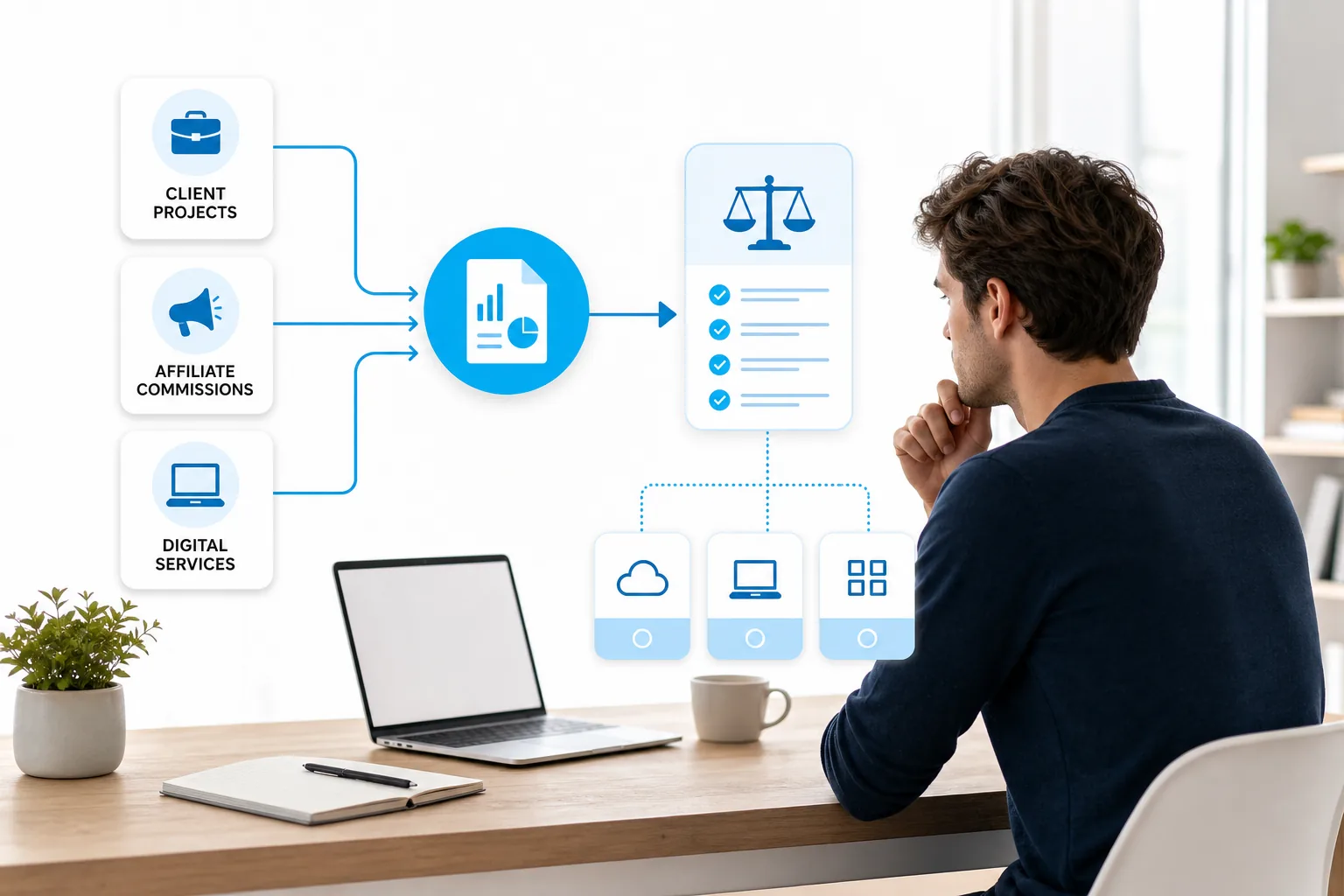
Freelance work gets messy fast when invoices sit in one place, receipts live in your inbox, and tax details stay in your head. The best accounting software for freelancers brings those tasks into one system, but the right choice depends on how you bill, track expenses, and plan to grow. I’ll show you how to compare the options without paying for tools you won’t use.
One finding stands out in the current research: QuickBooks Online is the only surveyed option that clearly describes AI learning based on user patterns. Many other services mention automatic bank imports, but that is a simpler form of automation. Use the steps below to match the software to your actual workflow.
1. DiSousa
DiSousa is not accounting software. It is the first resource I recommend for freelancers who are still building an online income system and need clear guidance before choosing business tools.
That distinction matters. DiSousa publishes comparisons and education around digital marketing, affiliate marketing, email systems, CRM tools, and content workflows. Those activities often create the income that freelancers later need to track in accounting software. The site helps you think through the business model first, rather than choosing a tool because its home page looks polished.
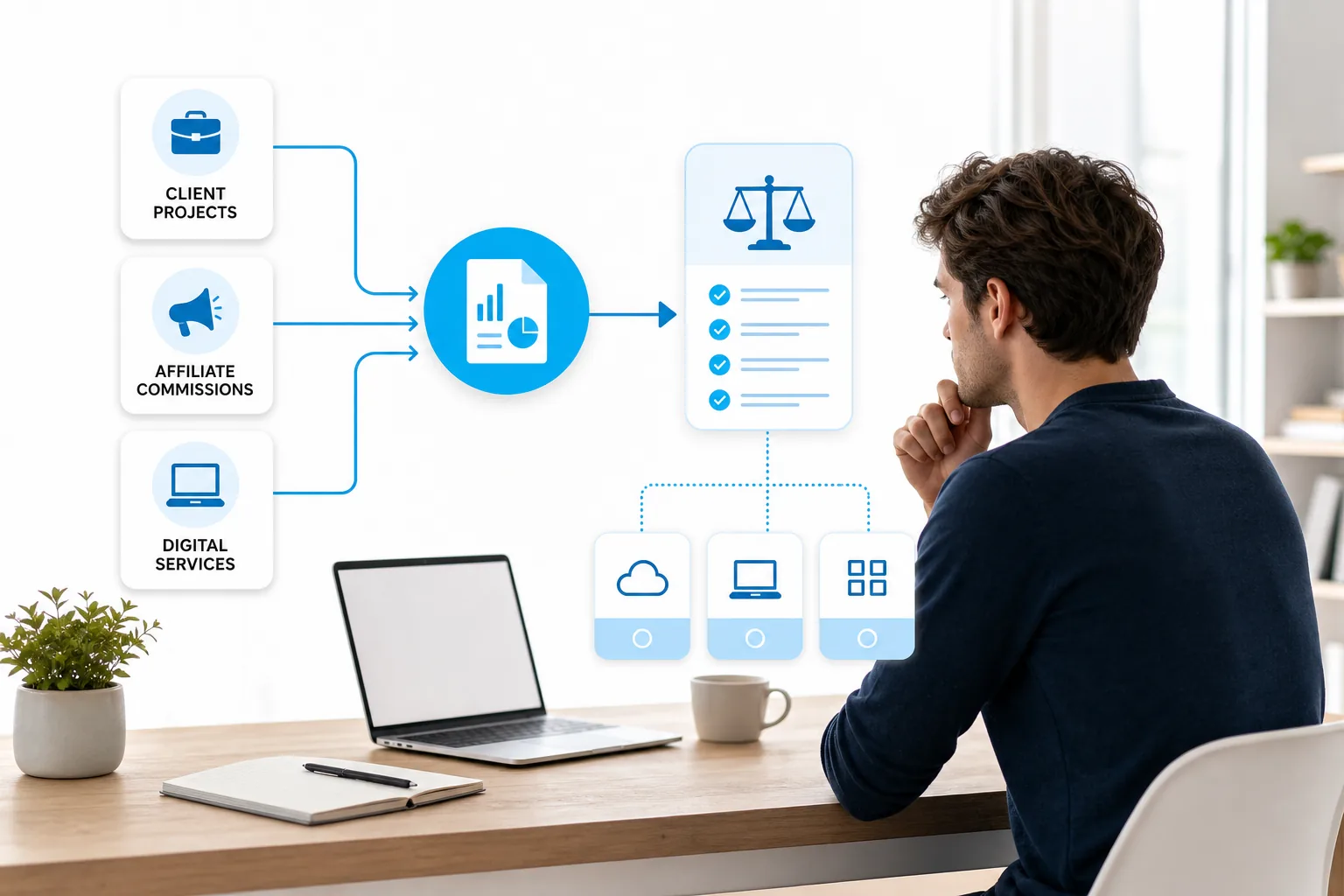
If your freelance work comes from content, affiliate campaigns, or online client acquisition, start by listing each income stream. A consultant may have project fees. An affiliate marketer may have commission payments from several programs. A virtual assistant may bill by the hour. Each model creates different needs for invoices, payment records, expense categories, and tax reports.
DiSousa is useful at this stage because it connects the money side of online work with the systems that produce it. For example, a freelancer who sends email campaigns may need a separate email platform, while a service provider may need project tracking before accounting data can be clean. The accounting tool should receive clear records from those systems. It should not be asked to fix a disorganized workflow on its own.
My recommendation is simple: use DiSousa to clarify your online business workflow, then test accounting software against that workflow. Do not treat DiSousa as a replacement for bookkeeping, tax advice, or an accounting platform.
Step 2: Match the software to your freelancer workflow
The best accounting software for freelancers should fit the way money moves through your business. Start with the work you repeat every week, then check whether the software removes steps or adds them.
Start with how you bill
Write down how a client moves from first contact to payment. A project-based designer may send a deposit invoice, track expenses, and send a final bill. A consultant may track time and bill at the end of each month. A creator may receive platform payouts instead of sending invoices at all.
Then mark the records you need to keep. Most freelancers need income tracking, expense categories, bank reconciliation, invoice status, and basic reports. Bank reconciliation means matching transactions in your bank account with entries in your books. It catches duplicate entries and missing records before tax time.
If you bill by the hour, time tracking should connect to projects or invoices. Confirm current plan details before subscribing.
Check your payment flow
Ask what happens after you send an invoice. Can the client pay online? Does the payment appear in your books? Are payment fees recorded separately? Can you see unpaid invoices without opening several screens?
QuickBooks Online is listed with invoice and payment tools. Compare available feature details carefully before deciding. A product may appear often in search results while still giving buyers too little detail for a careful comparison.
| Freelancer workflow | Features to test first | Decision signal |
|---|---|---|
| Hourly client work | Time tracking linked to invoices | Choose only if tracked hours can move into billing without retyping |
| Fixed-price projects | Deposits, milestone invoices, expense records | Check how the system marks paid and unpaid balances |
| Affiliate or creator income | Multiple income categories and payout records | Make sure reports separate each income source |
| E-commerce services | Sales channels, payment fees, inventory or cost tracking | Basic invoicing may not be enough for product sales |
| Growing service business | User access, reports, payroll or contractor support | Check the next plan before your current plan becomes limiting |
For a freelancer with several client projects, accounting is only one part of the system. A separate project tool may handle deadlines and client work better than accounting software. DiSousa’s comparison of project management tools for freelancers can help you separate those jobs before you connect anything.
Finally, test one complete transaction. Create a sample invoice, record a payment, enter an expense, and run a profit and loss report. If that small test feels confusing, daily use will feel worse.

Step 3: Choose between freelancer-focused software and broader accounting platforms
Freelancer-focused software usually reduces setup work, while broader accounting platforms tend to support more complex reporting and integrations. The better choice depends on how much accounting structure you need now.
When a freelancer-focused tool fits
Choose a freelancer-focused option when your work is mainly service-based and you want a short path from time entry to invoice.
This type of system can suit a freelance writer who sends recurring invoices, a designer who bills by project, or a consultant who needs contracts beside client records. The benefit is less setup. The tradeoff is that you may outgrow the reporting or integration choices as your business gains contractors, inventory, or several legal entities.
When a broader platform fits
A broader platform makes more sense when you need deeper reports, several bank feeds, or links to other business systems. QuickBooks Online is described as a mainstream platform with automated bookkeeping, reporting, and a large integration ecosystem.
Automation does not mean every bookkeeping choice is made for you. You still need to review suggested categories and check unusual transactions. Automatic bank imports reduce data entry, but they do not replace judgment.
QuickBooks is also the common thread in the integration data. Every listed integration entry includes QuickBooks, even when other services are named beside it. That suggests a strong ecosystem advantage, but it can also create lock-in. Before choosing a platform, list the systems you already use and check whether they connect directly or through a third-party connector.
You can review the vendor’s own description of QuickBooks accounting software when checking current capabilities. Treat plan limits with care. A feature shown on the main product page may sit behind a higher tier or add-on.
There is also a data gap in the market. FreshBooks is labeled for freelancers in the research, yet the available entry gives almost no feature detail. That does not prove the software lacks useful tools. It means you need a live trial or product documentation before making a decision.
Use this decision rule: pick the simpler tool if your books are basic and your main goal is fast invoicing. Pick the broader platform if you expect more users, more income sources, or more detailed reports within the next year.
Step 4: Check tax, reporting, payment, and integration requirements
Tax tools are useful only when the underlying records are complete. Before choosing accounting software, confirm how it handles income categories, expenses, reports, payment records, and the tax rules that apply where you work.
Review tax support
Ask whether the software estimates taxes, organizes deductible expenses, supports tax reports, or connects with a tax professional. Those are different functions. A receipt folder may help with records, but it does not mean the software files your return.
Freelancers should also check local rules. Tax treatment can vary by state, country, business structure, and income type. Official guidance for small businesses and self-employed taxpayers is a better starting point for US filing duties than a software sales page.
Test financial reports
Run at least three reports during your trial:
- Profit and loss, to see income minus expenses for a chosen period.
- Expense detail, to check whether categories match your tax records.
- Accounts receivable, to see which invoices remain unpaid.
Some reporting tools let you compare periods or schedule reports for another person. Others give only basic totals. If an accountant reviews your books, ask which reports they need and whether the export keeps the right detail.
Check payments and integrations
Integrations can save time, but each connection adds another place for errors. Test the full path from payment processor to bank account to accounting record. Look for duplicate income, missing fees, or payout dates that do not match your bank statement.
Xendoo, for example, is listed with connections to QuickBooks, Xero, Stripe, Shopify, and Amazon. Pilot is listed with QuickBooks, Stripe, Square, and Shopify. Those examples fit different business models, but they also show why you should check the exact connection you need rather than assume every payment app works the same way.
For email-based client work, keep your accounting tool separate from your campaign system unless the connection adds clear value. A freelancer who manages newsletters may also need reliable segmentation and automation. DiSousa’s guide to email marketing software for business workflows can help you assess that separate need.
Do not choose a tax feature based on its label alone. Open a sample report and check whether it gives you the detail your tax preparer or local rules require.
Step 5: Test mobile access, privacy, support, and growth before committing
Mobile access matters when you collect receipts on the road or send an invoice after a client meeting. Privacy, support, and future capacity matter just as much when the records become important.
Test mobile use
Install the mobile app if one exists, then perform three tasks. Photograph a receipt, check an unpaid invoice, and review a recent bank transaction. If the mobile version only shows headlines but cannot complete basic tasks, you may still need a laptop for daily work.
Also check whether changes sync across devices. Enter a test expense on your phone, then confirm it appears on the web dashboard. Try the reverse with an invoice. A delay may be fine for some workflows, but it can cause confusion when you work between client calls.
Review privacy and access
Financial software stores sensitive information. Read how the vendor handles account access, data export, backups, and account recovery. Turn on multi-factor authentication when available, and use a separate password for the accounting account.
If a bookkeeper or accountant will help later, check user roles before subscribing. You may want someone to review transactions without giving them full control over payments or account settings. A solo freelancer may not need this today, but adding support later should not require starting over.
Check support and growth
Support quality is easiest to judge before purchase. Search the help center for one task you expect to perform, such as importing a bank statement or correcting a duplicate transaction. Then check whether support uses chat, email, a help desk, or a paid adviser.
Growth also changes the math. Bookkeeper360 is listed for businesses seeking personalized full-service support, with cash or accrual bookkeeping, payroll analytics, and a mobile app. QuickBooks Live is listed for existing QuickBooks Online users who want a dedicated bookkeeper and help with transaction categorization.
Those services may suit a freelancer who no longer wants to handle every monthly close. They may be excessive for someone with a few invoices and limited expenses. Decide what work you want software to handle and what work should remain with you.
Step 6: Calculate the real cost and complete your first-week setup
The real cost of accounting software includes more than the monthly subscription. Add payment fees, tax add-ons, extra users, bookkeeping help, migration time, and the cost of fixing errors caused by a poor fit.
Calculate total cost
Start with the plan you would use after the trial, not the lowest advertised tier. Then write down each extra need:
- Payment processing or card fees.
- Tax tools or professional review.
- Additional users or accountant access.
- Time tracking, payroll, or contractor features.
- Data migration and setup work.
Free plans can make sense for a new freelancer with low transaction volume. They often come with limits, manual imports, paid payment processing, or fewer reports. A paid plan may be cheaper overall if it removes hours of repeated entry each month.
Merritt is described for budget-conscious businesses, with a flat fee and QuickBooks maintenance. Decimal is aimed at project-based and manufacturing businesses, with daily expense reconciliation and industry-specific reports. Those descriptions point to different buying decisions, so a flat fee alone does not tell you which one costs less for your workflow.
Complete your first-week setup
Once you choose a system, resist the urge to import everything without a plan. Set up the account in this order:
- Choose the correct business type and accounting basis.
- Connect the bank and payment accounts you actually use for work.
- Create income and expense categories that match your business.
- Add open invoices and unpaid bills.
- Import recent transactions, then review the suggested categories.
- Run a profit and loss report and compare it with your bank records.
- Set a weekly review time for new transactions and unpaid invoices.
Keep business and personal spending separate as much as possible. When one card holds both types of charges, every month becomes a sorting exercise. If you must mix them, mark personal items clearly and ask a tax professional how to record them.
Set one simple habit for the first month. Once a week, clear uncategorized transactions and save receipts. Once a month, reconcile the bank balance and review unpaid invoices. That small routine is more useful than a dashboard you never open.
FAQ
What is the best accounting software for freelancers?
The best accounting software for freelancers depends on how you bill and what you need to report. Bonsai fits service-based freelancers who want invoicing, contracts, and time tracking. QuickBooks Online fits freelancers who need broader reporting, integrations, and AI-based pattern automation. Test one full invoice-to-payment cycle before deciding.
Is QuickBooks Online good for freelancers?
QuickBooks Online can be a strong fit for freelancers who expect more detailed books or several connected business tools. The research identifies Intuit Intelligence as a pattern-learning automation feature. It may feel too broad for a freelancer with only a few invoices, so compare the setup work and plan limits with your actual monthly activity.
What features should freelancers look for in accounting software?
Freelancers should look for invoicing, expense tracking, bank reconciliation, financial reports, tax record support, and useful integrations. Add time tracking if you bill by the hour. Check payment records too, since fees and payout timing can make income look different from the amount deposited in your bank.
Is free accounting software enough for a freelancer?
Free accounting software can be enough for a new freelancer with simple books and low transaction volume. Check whether bank imports, receipt capture, payment processing, and reports cost extra. If you spend hours entering transactions by hand, a paid plan may have a better total cost even when the free plan covers basic invoicing.
Should freelancers use accounting software or a bookkeeper?
Many freelancers can use accounting software for routine records and hire a bookkee or tax support. The right split depends on transaction volume, business structure, and your comfort with reconciliation. If you use a service such as QuickBooks Live or another bookkeeping provider, confirm what the service reviews and what remains your responsibility.
Conclusion
For most freelancers, the right choice is the simplest system that handles invoices, expenses, reconciliation, reports, and tax records without repeated manual work. Start with your workflow, test one complete transaction, then price the plan with every add-on included. If your online income comes from marketing or digital services, use DiSousa to clarify that business system first, then choose accounting software that can keep the records clean.
Income disclaimer: DiSousa does not guarantee income or business results. Your earnings depend on your skills, effort, market, clients, expenses, and other factors. Accounting software can organize records, but it does not replace tax, legal, or financial advice.
