
A YouTube analytics course can teach you what the numbers mean, but growth comes from using those lessons on your own channel. Start with one clear goal, find the report that answers a real question, then test one change at a time. That’s the approach Antonio De Sousa takes at DiSousa, where course comparisons focus on skills you can put to work.
We analyzed 38 comments and questions from YouTube and Quora about youtube analytics courses and found that 24% mentioned the clarification of specific analytics metrics.
- A useful analytics lesson should help you answer a channel question, not just name metrics.
- Read impressions and click-through rate alongside traffic source and viewer retention.
- Compare similar videos over a suitable date range before changing your content plan.
- Use one test per upload so you can tell which change may have helped.
Step 1: Set a Channel Goal Before You Study the Reports
Choose a single goal before opening reports. A goal gives each metric a job, so you don’t get pulled into reacting to every fluctuation in views.
Write down what you want the channel to do over the next few uploads. For example, you might want more viewers to find tutorial videos through YouTube Search. Or you may want people who already watch one video to continue to another. If your channel supports a business, you might be measuring visits to a product page or sign-ups for an email list. These are different goals, and each calls for a different reading of the data.
Turn a broad goal into a question
“Grow the channel” is too broad to guide a report review. Turn it into a question you can check against your data:
- Are more viewers finding this topic through search?
- Do viewers click the thumbnail after YouTube shows it?
- At what point do viewers leave the video?
- Are returning viewers watching this series?
- Does a video bring the kind of site visit or inquiry the channel needs?
Write one question beside the video or group you plan to review. Then choose a date range and keep it consistent when comparing similar uploads. A short window may make a new video look unusually strong or weak. A longer window can help show whether a topic keeps attracting viewers after its launch.
Keep the outcome in view, too. A creator focused on learning may care about retention and repeat viewing. A freelancer using videos to find clients may care about whether viewers take the next step outside YouTube. Views can help explain reach, but they don’t automatically show business value.
Match a course to the skill you need
Use your question to judge a course before enrolling. A focused lesson may be enough if you only need to learn a specific report. If you need a broader foundation, look for lessons on audience behavior, video packaging, retention, and how to act on patterns. Course names alone don’t tell you how much hands-on practice you’ll get.
A course’s credential and its depth are separate questions. A certificate does not prove that a course gives you enough practice to improve your channel.
DiSousa’s comparison of YouTube certification options can help if you’re also weighing a credential against the skills you need. Before you pay or commit time, check the course’s stated format, topics, access terms, and certificate details directly on its current course page.
Milestone: You should have one channel goal, one question to investigate, and a course skill that supports that question.
Step 2: Learn Where YouTube Studio Shows Your Channel Data
YouTube Studio’s Analytics area is the starting point for channel and video reports. You can review a channel-wide view or open an individual video when a broad summary doesn’t answer your question.
Open YouTube Studio and select Analytics. The Overview tab gives a summary of channel or video performance. You can also find reports such as Realtime and Typical performance there. Use the video-level view when you’re checking a specific upload, and the channel-level view when you’re looking for a wider pattern.
The Content tab helps you examine how people find and interact with your content. You can filter by content type and review reports such as impressions and how they led to watch time. YouTube Studio also has a Trends tab with search insights for your audience and viewers across YouTube. These reports can help you notice a topic gap, but a trend is a prompt to investigate, not proof that your audience wants a particular video.
For more detail, open Advanced Mode from a report or select the expanded analytics option. Advanced Mode lets you view specific data, compare performance, and export data. This can help when you want to look at a date range or compare a group of videos rather than rely on the top-level summary.
Menus can change, so follow the labels shown in your current Studio account if your screen differs.
Make a small report map
Before you click around, note where you expect to find the answer. This keeps a quick review from turning into an unfocused tour of the dashboard.
- Use Overview for a broad performance check.
- Use Content to review discovery and interaction by content type.
- Use the video-level report when the question concerns one upload.
- Use Advanced Mode when you need a comparison, filter, or export.
This video walks through how to use YouTube Analytics to grow your channel, including YouTube Studio reports for views, watch time, and retention.
Don’t assume every report needs a spreadsheet. A beginner can learn a lot by checking one video and writing down what stands out. Export data only when you have a clear reason, such as keeping a monthly record or comparing several related uploads.
Milestone: You should know where to open the channel summary, where to inspect one video, and when an expanded report will help.
Step 3: Read Reach Data to Understand How Viewers Find Videos
Reach data helps you see where viewers found a video and what happened after YouTube showed its thumbnail. Read the traffic source and impression reports together. A click rate by itself can’t explain the whole path.
Open the Reach tab for the video you’re reviewing. Check traffic sources first. Traffic source data can show whether people came from YouTube Search, suggested videos, playlists, or external sites and apps. If search brought viewers, the search terms report can show what they looked for. If another video or playlist sent traffic, that can suggest how viewers found the topic.
Next, review impressions and impressions click-through rate (CTR). An impression is a registered display of a video thumbnail on eligible YouTube surfaces. CTR measures how often viewers watched after seeing a registered impression. It does not represent every view, since views from places such as external sites may not count as impressions for this metric.
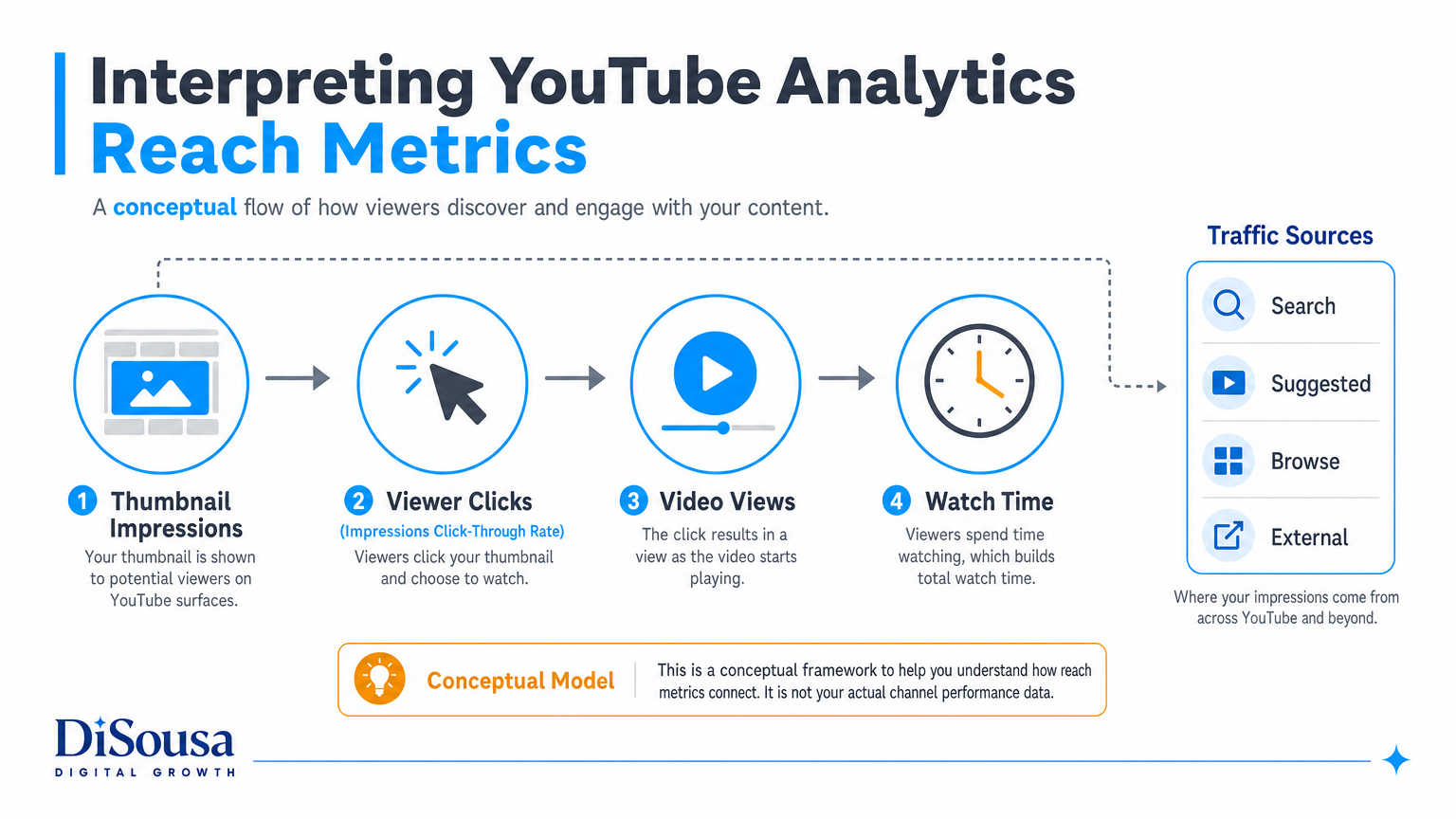
That distinction matters. A video may have views from an external page without a matching increase in registered YouTube impressions. A high CTR can also mean different things depending on where the thumbnail appeared and who saw it. CTR can vary by audience, content, and placement.
Use comparisons over time, not a single upload as a verdict. Compare CTRs between videos over the long term and take traffic sources into account. A new video with a small number of views may shift sharply as it gains more data.
Diagnose the viewer path
Try this simple sequence. First, identify the main source of views. Then ask what promise your title and thumbnail make to viewers from that source. Finally, check whether the video delivers on that promise by looking at its viewing pattern in the next step.
If a tutorial gets search traffic for a term that differs from its planned topic, inspect the video before changing its title. The query may show that viewers want a related answer. If the thumbnail receives impressions but fewer viewers choose the video, consider whether its message is clear at a glance. Change one element, then watch how the next comparable upload performs.
A low impression count and a low CTR are not the same problem. The first points to limited registered exposure; the second describes clicks among impressions. A course should teach this distinction, or you may end up rewriting titles when the more useful next step is topic research or distribution.
DiSousa’s overview of YouTube analytics tools is relevant if you need to compare Studio reports with other reporting options. Start with Studio first, though. Extra tools are most useful when you know which unanswered question they need to solve.
Milestone: You should be able to name the main traffic source, explain what CTR does and doesn’t measure, and choose one question to carry into the retention report.
Step 4: Use Engagement and Retention Reports to Find Viewing Patterns
Engagement reports help you see whether viewers stayed with a video and where their attention changed. Audience retention is especially useful because it shows patterns across the timeline, not just a single average.
Open a video’s audience retention report and look at its shape. The opening section shows what share of viewers remained after the first 30 seconds. A sharp drop early in the video can be a reason to check whether the opening reaches the promised answer quickly. A rise, or spike, can point to a moment people replayed or watched closely. Treat either as a clue to inspect the video itself, not a final explanation.
Avoid making a firm call while a report is still filling in. YouTube also lets creators compare typical retention across their ten latest videos of similar length. Comparing videos with a similar run time can help you spot a repeated pattern without treating a short clip and a long tutorial as equivalent.
Look at where viewers start and stop watching. If many leave before the key instruction, see whether the intro delays it. If attention falls around a long explanation, check if the example arrives too late. If viewers replay a segment, ask whether it contains a useful step or whether the explanation needs to be clearer. You can then apply that observation to the next script or edit.
You can compare new and returning viewers, or subscribers and non-subscribers. If you run ads, the report can also separate some paid and organic viewing patterns.
Separate a symptom from a cause
A graph can show where a change happened. It can’t tell you with certainty why each viewer left. The opening may be too slow, or the title may have brought in viewers who wanted something else. The report gives you a place to investigate, and the video supplies the context.
For instance, imagine a cooking tutorial where viewers leave before the first key step. Review the opening and compare it with the title’s promise. If the title promises a quick method but the video begins with a long channel introduction, you have a testable mismatch. Shorten the setup in the next similar video and check whether early retention changes. Don’t claim the edit caused a change from one upload alone.
Use segment comparisons with care. New viewers may need more context than returning viewers. Subscribers may already understand your terms. If one group leaves sooner, the right response might be clearer framing for new viewers, not a wholesale change to the topic.
Keep a short note with the video name, the point where the graph changes, what appears on screen at that time, and one possible adjustment. That note makes the review useful when you write the next script.
Milestone: You should have one section of a video to inspect and a plausible change to test, not a claim that the graph has proved a cause.
Step 5: Explore Audience and Revenue Reports Without Overreading Them
Audience reports describe patterns in who watches and how they return. Revenue reports describe estimated earnings in supported areas. Neither report can tell you everything about a viewer or predict what your channel will earn next.
The Audience tab includes measures such as new viewers and subscribers. YouTube’s monthly audience is an estimate of unique viewers over the last 28 days, recalculated each day using the prior 28-day period. It also groups viewers as new, casual, or regular based on watch behavior. Because the window moves daily, compare dates consistently rather than treating each day’s figure as a separate audience.
Other audience reports can show when viewers are active on YouTube, what devices account for watch time, and which geographies contribute the most watch time. You may also see other channels or videos your viewers watched. These are prompts for content planning. They don’t prove that a particular collaboration will work or that your next upload should copy another channel.
Use audience details to shape a test
Suppose your watch time comes mainly from mobile devices. Review whether captions, text size, and visual details are easy to follow on a small screen. If viewers watch several formats, consider a short follow-up that points to a longer lesson. If the audience report suggests interest in a related topic, test one video that answers a focused question rather than shifting the whole channel at once.
Demographic details need restraint. Age ranges and gender distribution can describe reported audience patterns, but they don’t tell you what each person wants. Don’t write a script from a demographic label alone. Use it alongside actual viewing behavior, search terms, comments, and the subject of the video.
For creators who need custom reporting, advanced reporting options may be available. They are not a requirement for learning Studio.
Read revenue as an estimate, not a promise
Estimated revenue can help you understand channel performance, but it is not a guaranteed payout. Keep that limit in mind when you compare periods.
For a business channel, pair YouTube data with the outcome you care about outside the platform. If a video aims to bring people to a service page, use a consistent tagged link and review visits or inquiries in your own site reporting. Don’t assign every sale to the last video someone watched unless your tracking supports that conclusion.
When looking at revenue, note the date range and the metric name. A change in estimated revenue may reflect a change in views, audience, ad activity, or later adjustments. The report alone may not explain which factor drove it. Record the figure as an estimate and avoid building a budget around one short period.
Milestone: You should have one audience pattern that suggests a content test, plus a clear understanding of which revenue figures are estimates.
Step 6: Turn What You Learn Into a Repeatable Video Experiment
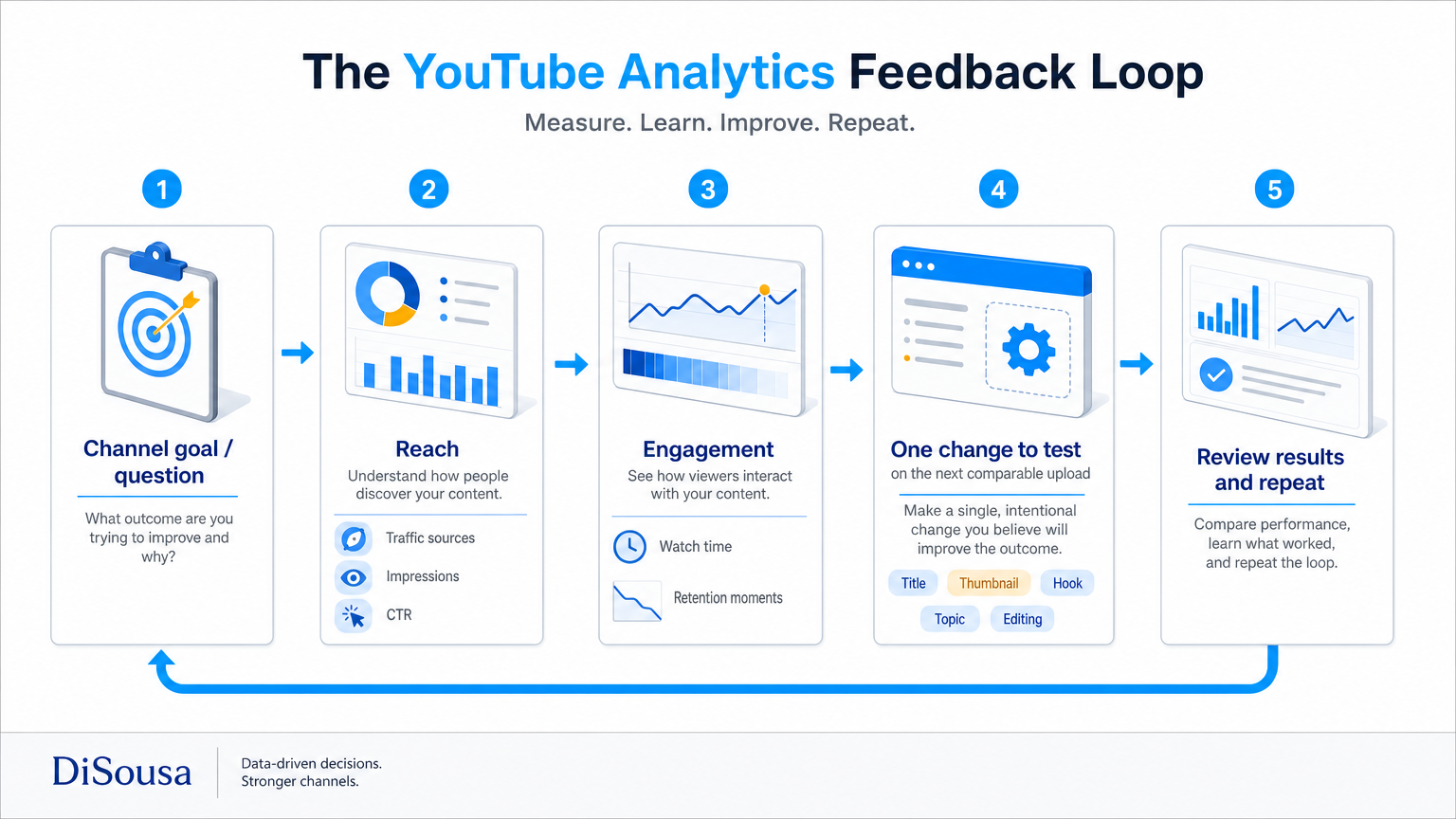
A useful analytics review ends with a small test. Write down what you saw, what you think may explain it, and what you’ll change next. Then review a comparable upload after it has enough data to be useful.
Build a one-change test
Start with a short experiment note. Include the video’s goal, the report you checked, the pattern you noticed, and the next change. Keep your original observation separate from your guess about why it happened.
- Goal: Increase search discovery for a specific tutorial topic.
- Observation: Search is a main source, but viewers leave before the example.
- Possible reason: The video may take too long to reach the promised instruction.
- Change to test: Put the first example earlier in the next similar video.
- Review: Compare its early retention with similar videos after processing.
This sample is a way to structure your notes, not a claim about a real channel. The point is to test one part of the viewing experience. If you revise the topic, thumbnail, opening, and length together, you won’t know which change mattered.
YouTube Studio’s Advanced Mode can support this routine. You can create groups, apply filters, and compare content or date ranges. You can also save a custom view for repeat checks on a computer browser. Keep the saved view narrow enough to answer a recurring question. A report with many filters can be hard to interpret if you don’t know what each filter removes.
Use a simple review cadence
Choose a regular point to review each upload. The exact timing depends on your posting pace and how quickly a video gathers data. Check retention after the report has processed. For reach, compare similar videos across a date range that makes sense for their publishing age. Write the review date beside the numbers so you don’t mistake early results for a settled pattern.
At the end of a batch of uploads, look for repeated signals. One video may have an unusual spike. A pattern across several similar videos is a stronger reason to test a format change. It still isn’t proof of cause, but it can help you choose what to try next.
For a channel growth workflow beyond report reading, DiSousa’s step-by-step channel growth guide connects analytics review with the next video decision. Keep your own experiment note short enough to use every time. A few clear lines beat a spreadsheet you never open.
Pro Tips
- Save a clean baseline before changing a video title or thumbnail, so you can compare before and after.
- Compare videos with similar topics or lengths when possible; unlike uploads can produce misleading contrasts.
- Write down the traffic source before judging CTR, because impressions come from different YouTube surfaces.
- Wait for retention data to process before drawing a conclusion from the graph.
- Use a business outcome only when your tracking can connect it to a video with reasonable confidence.
Keep the experiment small. If the next upload improves, record the result as a promising signal and test whether the pattern holds again.
Conclusion
A course can give you a starting point, but the strongest lesson comes from using one report to answer one channel question. Set a goal, check the right Studio view, and write down a single change to test. Pick one recent video today and make its review note before planning the next upload.
Frequently Asked Questions
What does a YouTube analytics course teach?
A YouTube analytics course teaches you how to read performance reports and use them to guide content decisions. Useful topics include traffic sources, impressions, click-through rate, audience retention, and viewer patterns. Course depth varies, so check its lessons and practice tasks against the skill you need instead of relying on the title alone.
Can I learn YouTube Analytics for free?
Yes, you can start with YouTube Studio and its official help materials without taking a paid course. Use a real video from your own channel as you study each report. A course may add structure or a credential, but you can learn the core workflow by asking a clear question and checking the report that answers it.
Is a YouTube course certificate worth it?
A certificate may be useful if you need proof that you completed a course, but it doesn’t by itself show that you can interpret channel data. Check what the course teaches and whether you’ll practice with reports. For many creators, being able to explain a decision using their own channel data is the more useful skill.
Which YouTube Analytics metric should I check first?
Start with the metric that matches your goal. To understand discovery, check traffic sources and impressions. To understand viewing behavior, inspect audience retention. To understand repeat interest, review audience and returning-viewer information. Don’t pick a metric just because it appears prominently in a summary; begin with the question you want answered.
How often should I check YouTube Analytics?
Set a review rhythm that fits how often you publish, then keep it consistent. Check a video after its reports have had time to process, and compare it with similar uploads over a sensible period. Frequent checks can be useful for monitoring, but they can also make normal day-to-day changes seem more important than they are.
